Set up budgets that follow your pay
Weekly, fortnightly or monthly budgets, lined up with the day your pay arrives. How to set them up, read them and keep bills separate.
Bank syncing isn’t live yet. We’re working on getting it set up with Akahu for launch, so some of what’s below isn’t switched on yet. In the meantime, you can import a bank statement to bring your transactions in.
Most budgeting apps assume you're paid on the first of the month. Plenty of New Zealanders aren't. In Worthberry, each budget picks its own rhythm (weekly, fortnightly or monthly) and resets on the day that suits your pay, not a random date on the calendar.
This guide takes about five minutes. By the end you'll have budgets for the things you spend on most, lined up with your payday, plus a clear view of what's left until the next one.
1. Tell Worthberry when your budgets reset
Out of the box, weekly budgets reset on a Monday, fortnightly budgets every second Monday, and monthly budgets on the 1st. If that doesn't match your pay, change it in one of two places.
If you're paid fortnightly: set your payday
- Open Settings (the cog at the top of the platform).
- Under your profile, set A recent payday. Any payday works, past or future.
- Press Save profile.
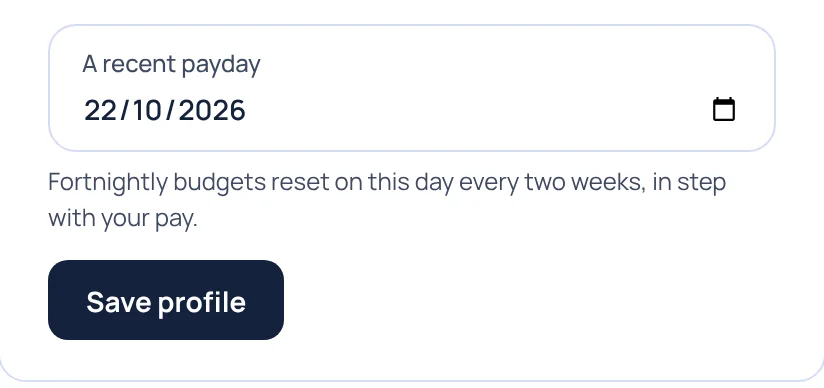
Fortnightly budgets now reset on payday every two weeks, and the Budgets page says Fortnights follow your payday.
For any rhythm: change the start date
Paid weekly, or on the 15th of the month? Set the start date on the Budgets page instead.
- Open Budgets and press Change start date, just above your budgets.
- Under Budgets start on, pick the day your budget should reset, like your next payday.
- Press Save.
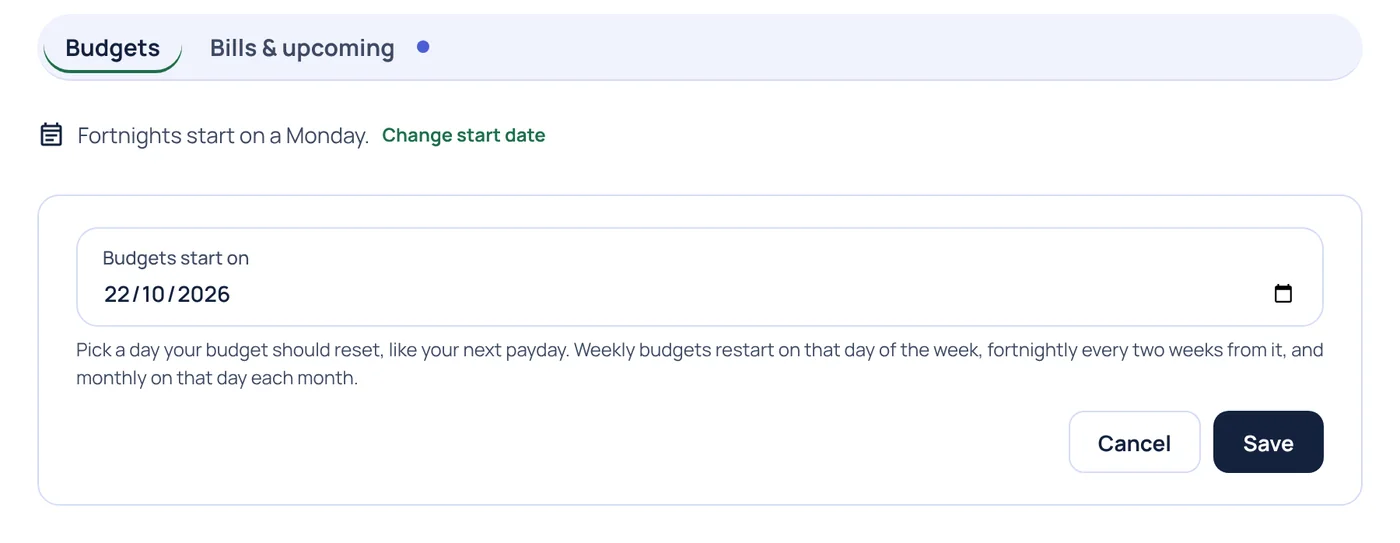
That one date sets all three rhythms. Weekly budgets restart on that day of the week, fortnightly budgets every two weeks from it, and monthly budgets on that day each month. Changed your mind? Open it again and press Use the usual start.
2. Create your first budget
- Open Budgets and press New budget.
- Choose a Category, like Groceries.
- Enter a Limit: the most you want to spend in each period.
- Under Every, choose Week (Mon–Sun), Fortnight (pay cycle) or Month.
- Press Save.
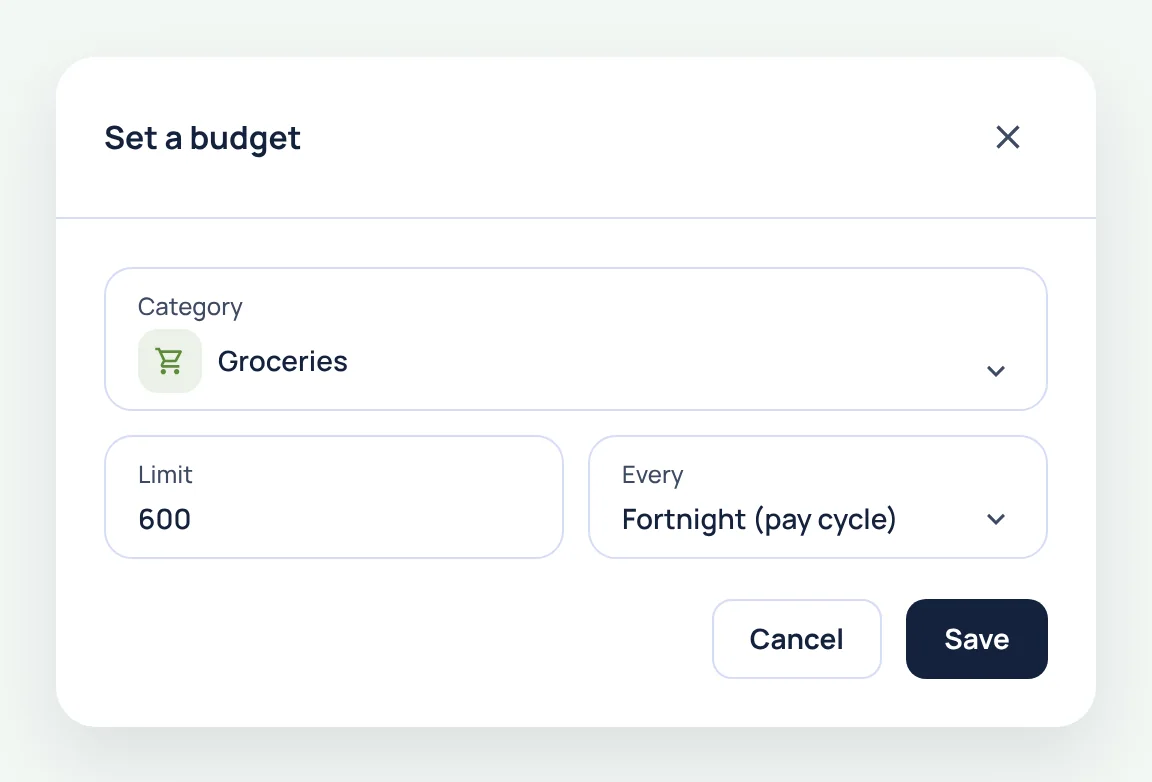
A budget for a category includes everything in it. A Transport budget also counts spending in subcategories like Fuel, Parking and Public transport, and the budget card lists them so you know what's counted.
Each budget sits on its own tab, so use the Weekly, Fortnightly and Monthly buttons at the top of the page to see each set.
3. Not sure what to set? Let your spending suggest it
Below your budgets, Other spending this fortnight (or week, or month) lists every category you've spent on that doesn't have a budget yet, with the amount so far.
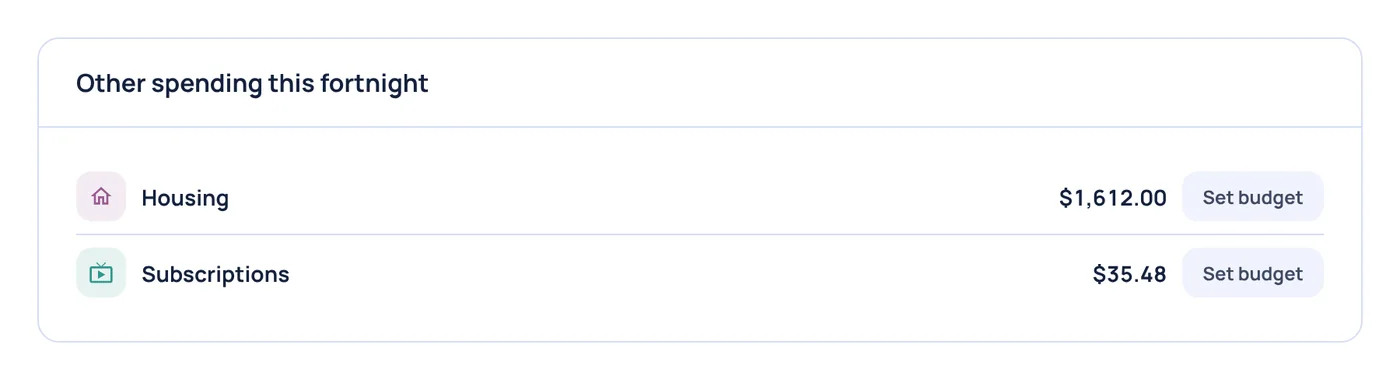
Press Set budget next to one and the form opens with that category and rhythm already filled in, and a limit based on what you've spent so far, rounded up to the nearest $10. Adjust it if you like, then press Save.
4. Read your budgets at a glance
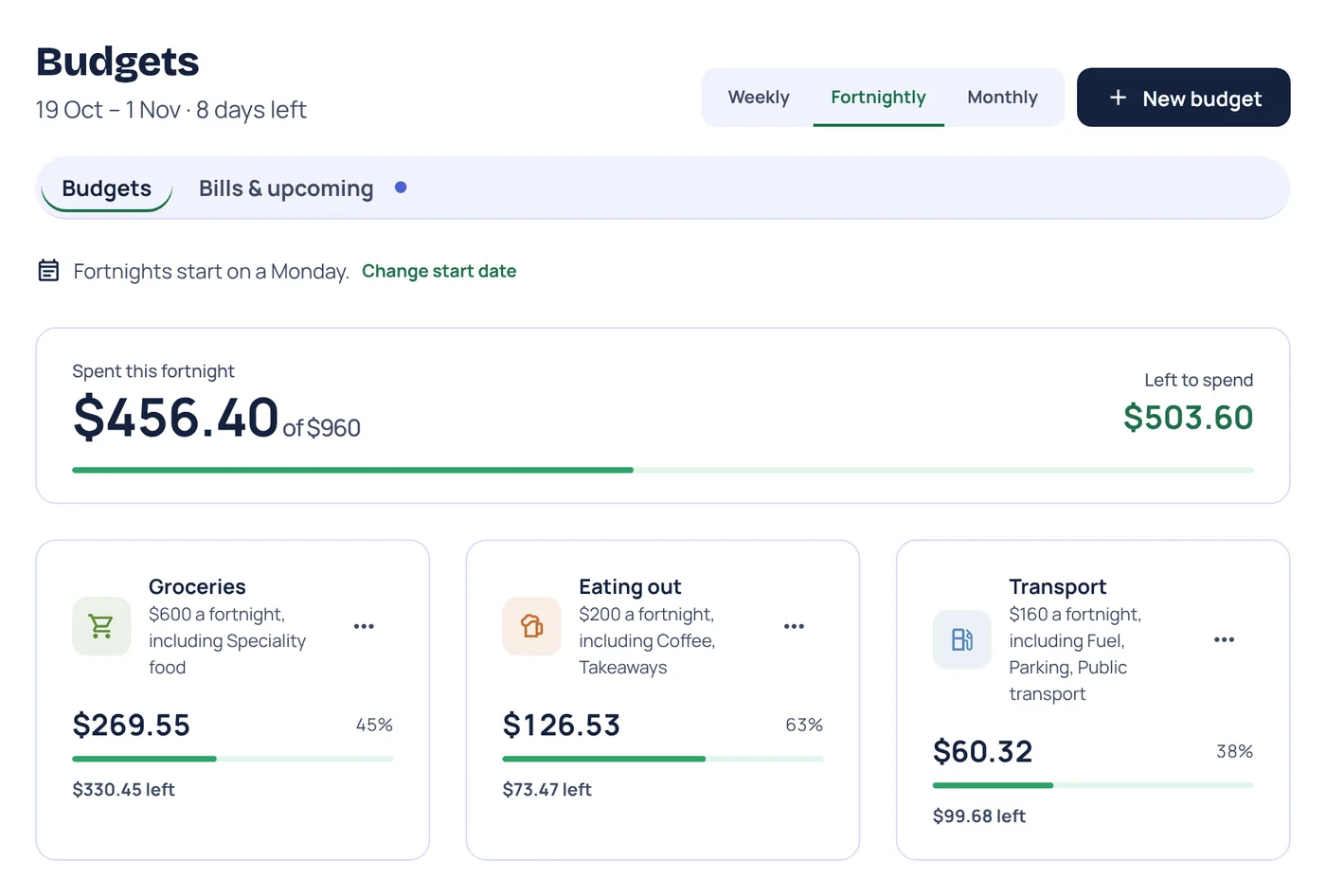
Back on the Budgets page, everything for the current period is in one place:
- The dates and days left, under the Budgets heading, like "19 Oct – 1 Nov · 8 days left".
- The total: what you've spent across all your budgets this period, out of the combined limit, and how much is Left to spend.
- Each budget: what you've spent, the percentage used, and how much is left.
The bars change colour as you go, so you can tell how you're tracking without reading a number. Green means you're on track, orange means you've used 80% or more, and red means you've reached or passed the limit, with any amount over shown underneath.
Everything updates as transactions come in from your linked banks or a statement import. If something lands in the wrong budget, fix its category on the Transactions page and the budget updates straight away.
5. Change or remove a budget
Press the ⋯ menu on any budget card, then choose Edit to change its category, limit or rhythm, or Delete to remove it. Your transactions aren't affected either way.
6. Keep bills separate from everyday spending
Rent, power and phone plans are set amounts, not spending you can trim week to week. The Bills & upcoming tab on the Budgets page keeps them apart, so your everyday budgets stay focused on what you can control.
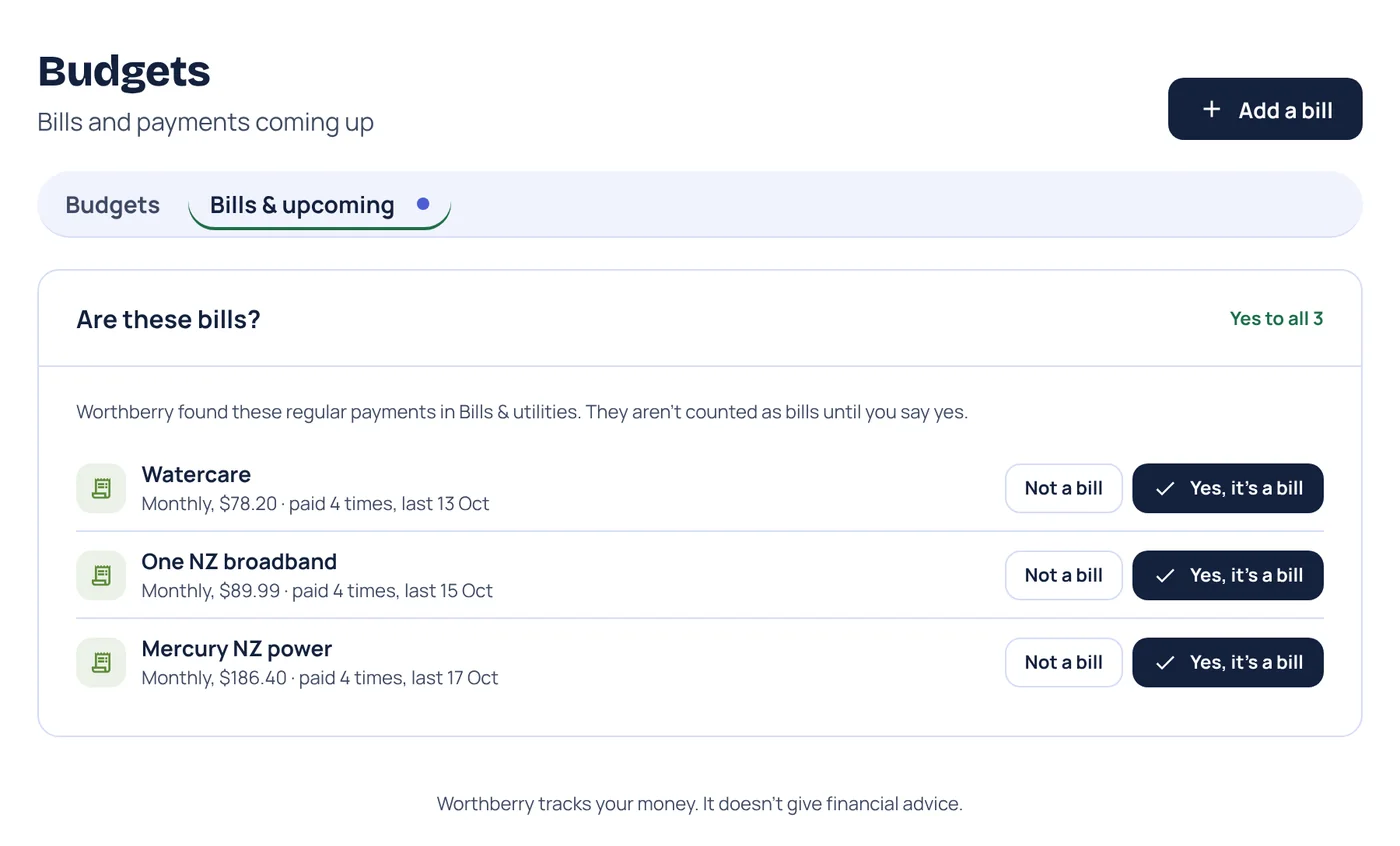
- Worthberry looks for regular payments in your transactions and asks Are these bills? Press Yes, it's a bill to keep tracking it, or Not a bill to dismiss it. A dot on the tab tells you when there's one to check.
- Press Add a bill to add one yourself, with its amount, how often it's due and the next due date.
- Bills due in the next week show as a number on the tab, so nothing sneaks up on you.
7. See your budgets without opening the page
Add the Budgets visual to your dashboard and your budgets are the first thing you see each time you open Worthberry. It has its own Week, Fortnight and Month tabs.
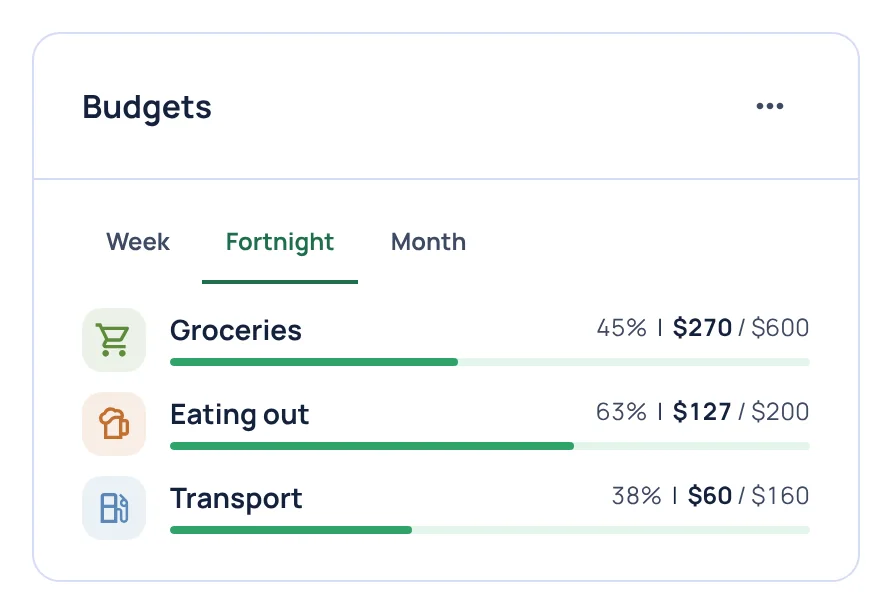
On the dashboard, press Customise, then Add visual, and choose Budgets. Want to compare what you planned with what you spent? The Grouped bar chart visual has a Budget vs actual view. There's more in Build a dashboard that shows what you care about.
Ideas to get you started
- Start small. Three budgets you actually check beat ten you ignore. Groceries, eating out and transport are popular first picks.
- Mix and match rhythms. Groceries and fuel often suit a weekly budget, eating out a fortnightly one, and clothes or gifts a monthly one.
- Watch the three-pay months. If you're paid fortnightly, two months a year bring a third payday. Fortnightly budgets stay the same size, so that pay isn't swallowed by everyday spending. Read more in Paid fortnightly? Your budget should be too.
Seedling includes 5 budgets, Sprout 8, and Ripe and Harvest as many as you like. During the private beta, everything is included.
Worthberry tracks your money. It doesn't give financial advice.